GitLab Setup
After installing Codestodian in Slack, you'll need to connect it to your GitLab account to enable code review functionality. Codestodian supports both GitLab Cloud (gitlab.com) and self-managed GitLab instances.
Step 1: Create an OAuth Application in GitLab
Navigate to your GitLab instance and create a new OAuth application:
- Go to User Settings > Applications (e.g.
https://gitlab.com/-/user_settings/applications) - Fill in the following fields:
| Field | Value |
|---|---|
| Name | Codestodian |
| Redirect URI | https://api.codestodian.io/oauth/gitlab |
| Confidential | Yes (checked) |
| Scopes | api |
api scope?Codestodian uses the OAuth token purely for API access — reading projects, merge requests, pipelines, CI jobs, users, and creating group webhooks for notifications. It does not act as an identity provider, so additional scopes like read_user, openid, profile, or email are not required.
- Click Save application.
- After saving, GitLab will display your Application ID (Client ID) and Secret (Client Secret). Copy both values — you will need them in the next step.
The Client Secret is only shown once. Make sure to copy it before navigating away from the page.
Step 2: Connect Codestodian to GitLab in Slack
- Open the Codestodian App in Slack.
- On the home page, press the Connect to GitLab button.
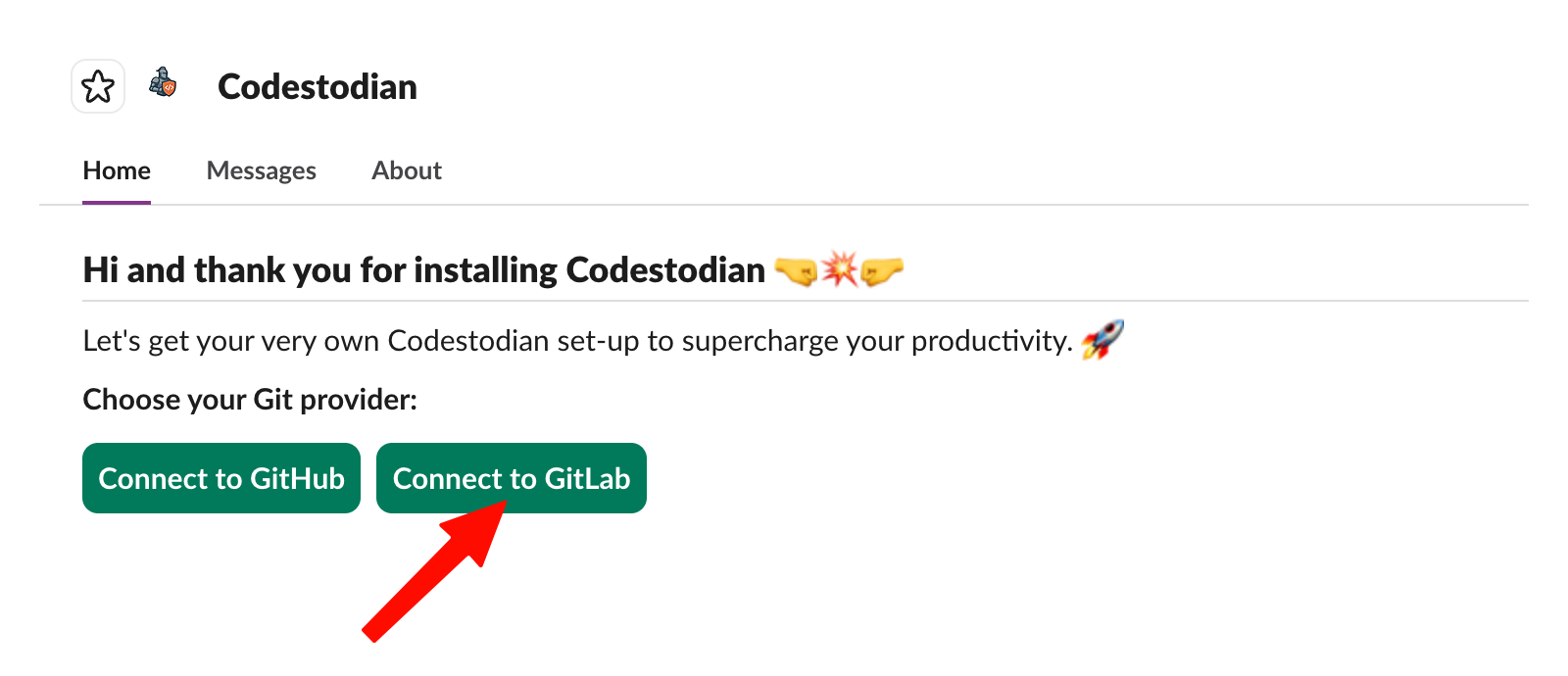
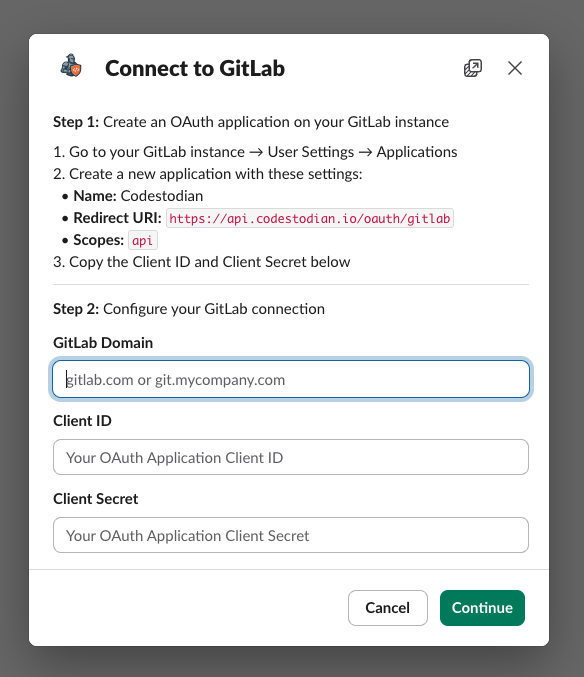
- When prompted, enter the following details:
- GitLab domain — e.g.
gitlab.comorgit.mycompany.com - Client ID — the Application ID from Step 1
- Client Secret — the Secret from Step 1
- GitLab domain — e.g.
Step 3: Authorise Codestodian
After submitting your credentials, your browser will navigate to GitLab's authorisation page. Review the permissions and click Authorize to grant access.
OAuth Scope Details
| Scope | Why the app needs it |
|---|---|
api | Full API access to read projects, merge requests, pipelines, groups, and create group-level webhooks. |
After authorising, Codestodian will create a webhook on each of your owned GitLab groups so that it can receive events from GitLab. The webhooks cover the following event categories:
CI / Pipeline Events
| Event | What it sends | Why it's useful |
|---|---|---|
| Pipeline | Pipeline lifecycle updates (success, failed, canceled, skipped) | Notify engineers of build outcomes |
| Deployment | Deployment progress and status changes | Track deployments across environments |
Collaboration / Code Review Events
| Event | What it sends | Why it's useful |
|---|---|---|
| Merge request | Merge request lifecycle changes (opened, approved, merged, closed) | Main driver of MR summaries and approval notifications |
| Note | Comments and discussions on merge requests | Review context awareness and approval detection |
After completing the authorisation on GitLab, you will be redirected back to Slack. Congratulations — you are ready to use Codestodian with GitLab!
If your GitLab instance is behind a VPN or firewall, you will need to add Codestodian's IP addresses to your allow list so that webhooks and API calls can reach your instance. Please get in touch and we'll provide the details.