Slack Installation
Welcome and thank you for your interest in Codestodian. This guide will walk you through the complete installation flow to get you up and running as fast as possible.
Prerequisites
- You must be an administrator on your Slack workspace to be able to install Codestodian.
Guide
Slack Installation
The easiest and simplest way to install Codestodian is to navigate to the Codestodian homepage and click the Add to Slack button on the top right of the page.
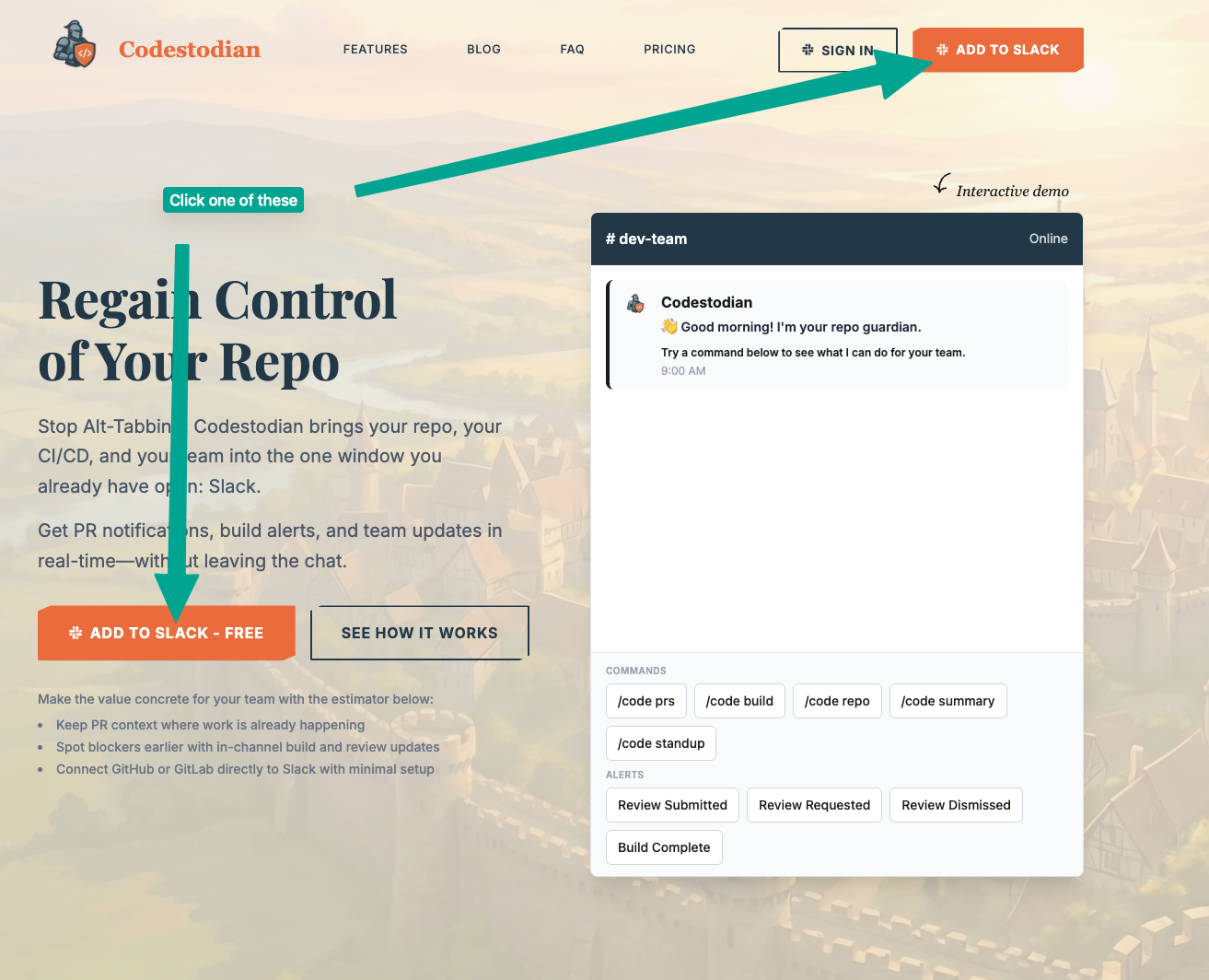
After clicking the Add to Slack button, you will be directed to the following page:
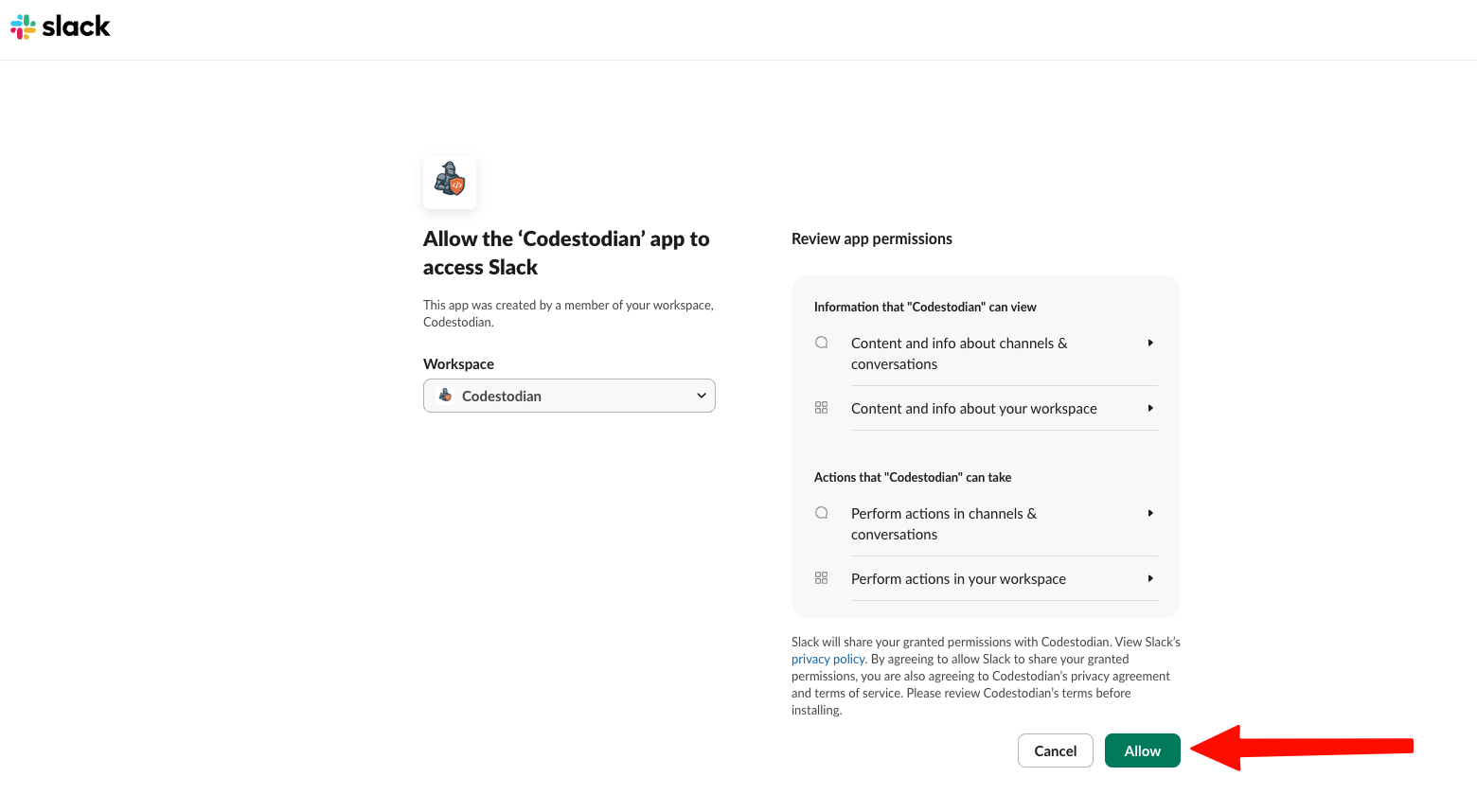
After reviewing the permissions requested by Codestodian, click the Allow button to install the app into your workspace. The permissions requested are required by the application to function correctly:
| Permission | Why the app needs it |
|---|---|
app_mentions:read | To receive and process @Codestodian mentions in channels. |
channels:read | To support selecting public channels and working with channel metadata/IDs. |
chat:write | To send bot messages and ephemeral responses to commands/actions/errors. |
chat:write.public | To post summaries into public channels even if the bot is not explicitly a member. |
commands | To receive and handle the /code slash command. |
im:history | To receive and respond to direct messages sent to Codestodian. |
im:write | To open direct message conversations for private responses. |
users:read | To fetch Slack user profiles for Home view and team/member operations. |
users:read.email | To read installer email from Slack profile during installation flow. |
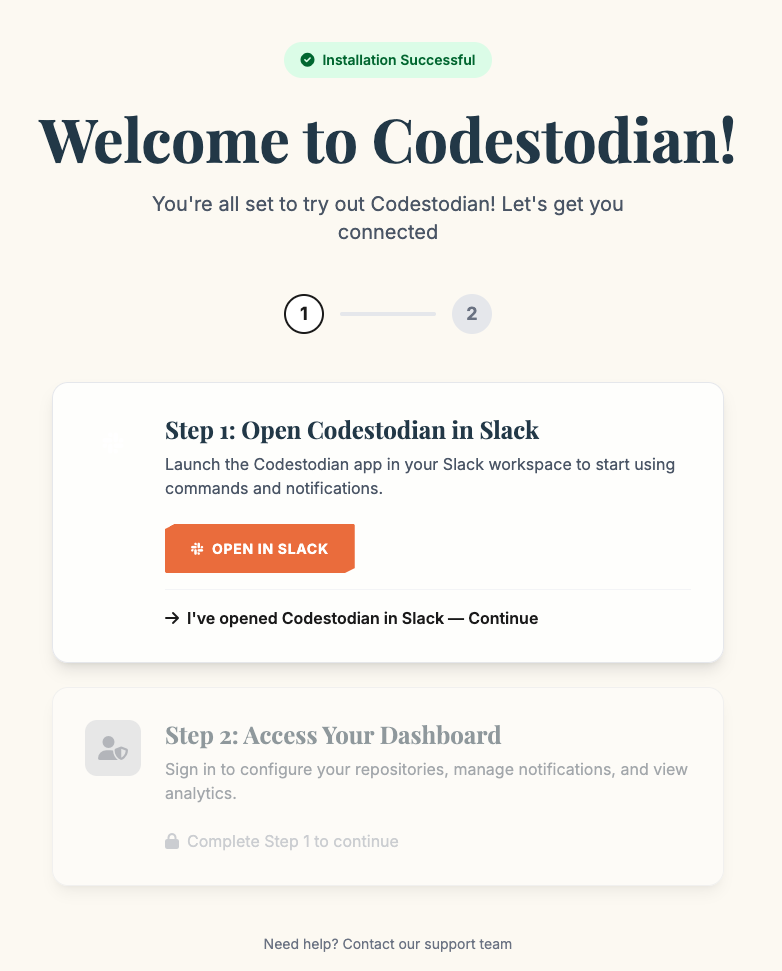
Once the app has been installed, you will be redirected to the following webpage to begin the set-up of Codestodian:
Using Codestodian
After installation, navigate to the Codestodian home page on Slack. There, you will be presented with the following page:
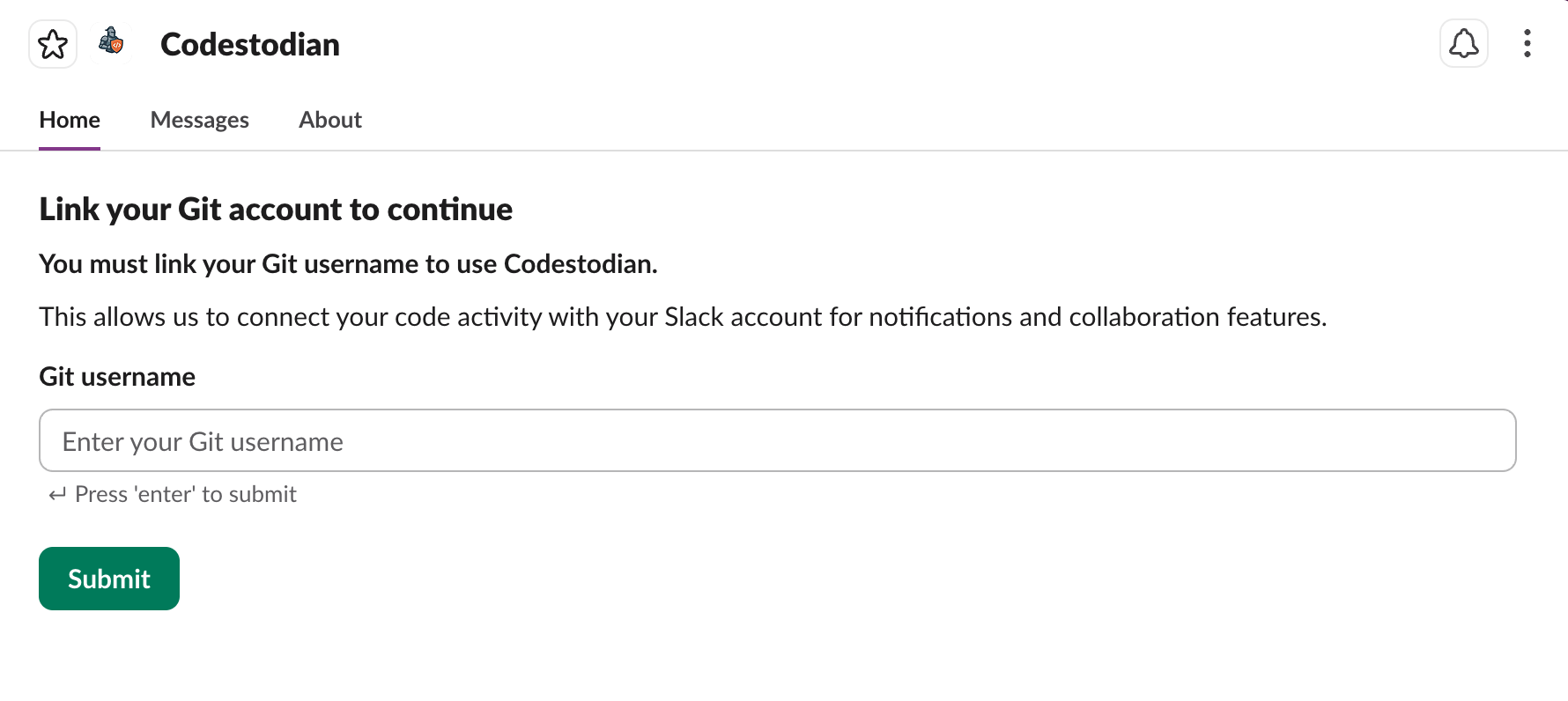
In order for Codestodian to work, we need to link your Slack account to your Git account. This is so we can identify which notifications are relevant to you, and so others in your organisation can get in touch with you directly rather than attempting to decipher which Git account belongs to whom in Slack.
Enter your Git username into the field and press Submit. After doing so, you will be ready to go.