Linking Your Git Account
Before you can use Codestodian, you need to link your Git account (GitHub or GitLab) to your Slack user. This allows Codestodian to connect your code activity with your Slack account for notifications, standups, and collaboration features.
Why is this required?
Linking your Git account enables Codestodian to:
- Send you notifications about pull request reviews
- Track your contributions for team standups and summaries
- Provide build status updates relevant to you
- Personalize your experience across the platform
How to link your account
There are two ways you may be prompted to link your Git account:
From the App Home tab
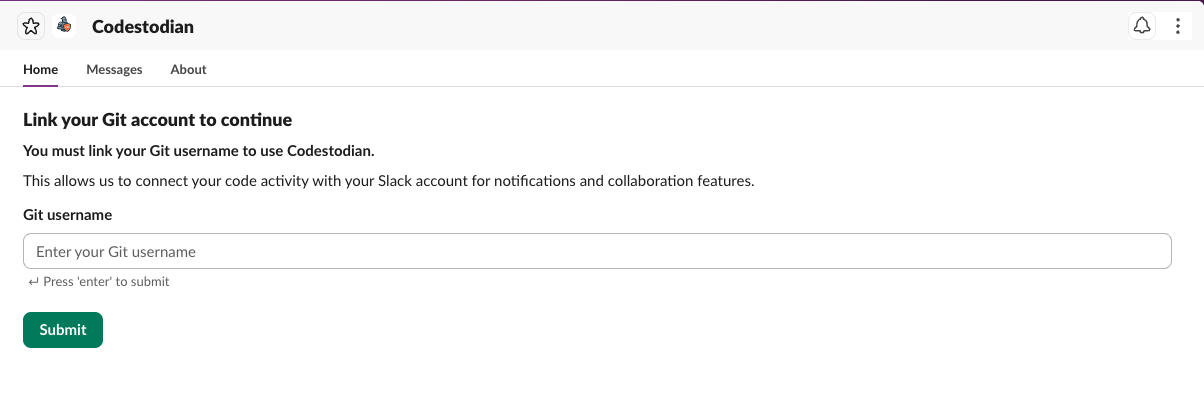
When you first open Codestodian in Slack, navigate to the App Home tab. If your account is not yet linked, you will see a prompt to enter your Git username.
- Open the Codestodian app in Slack and go to the Home tab.
- You will see a section titled "Link your Git account to continue".
- Enter your Git username (e.g.
johndoe) in the input field. - Click Submit.
From the linking modal
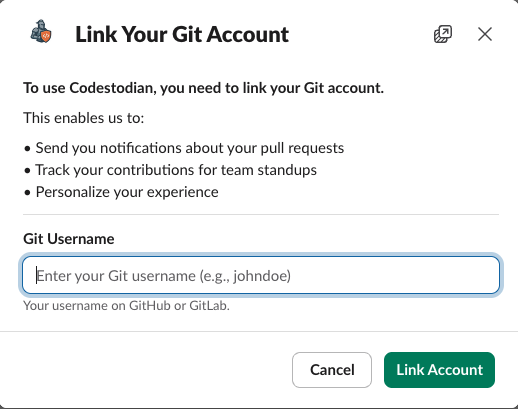
If you try to use any Codestodian feature (such as a slash command or button) before linking your account, a modal will appear asking you to link your Git account.
- A modal titled "Link Your Git Account" will appear.
- Enter your Git username in the Git Username field.
- Click Link Account.
What happens after linking
Once your Git username is successfully validated and linked:
- The modal will close (or the home tab will refresh).
- You will see the full Codestodian home view with all available features, including buttons for repository details, pull requests, build status, standups, and summaries.
Troubleshooting
"Could not find a user with that username"
This means the username you entered does not match any user on your connected Git provider (GitHub or GitLab). Double-check your username and try again. Your username is typically found in your Git profile URL (e.g. github.com/johndoe).
"This Git account is already linked to another user in your workspace"
Each Git account can only be linked to one Slack user per workspace. If you see this error, the Git username you entered is already associated with a different team member. Use a different Git account or contact your workspace admin to resolve the conflict.
License limit reached
Your workspace has a limited number of user seats based on your Codestodian subscription plan. If the limit has been reached, you will see a message indicating that no more users can be linked. Contact your workspace admin to upgrade the plan or free up a seat.