Using and Organising Teams
Teams are the way which software engineers organise and it is how the stand up command works. The stand up command gathers all the PRs of every member in the team that are in-flight and posts them to the teams channel.
Creating / Joining a Team
To create or join a team, first navigate to the home page of the Codestodian app. Once on the home page, click the "Create or join a new team." button
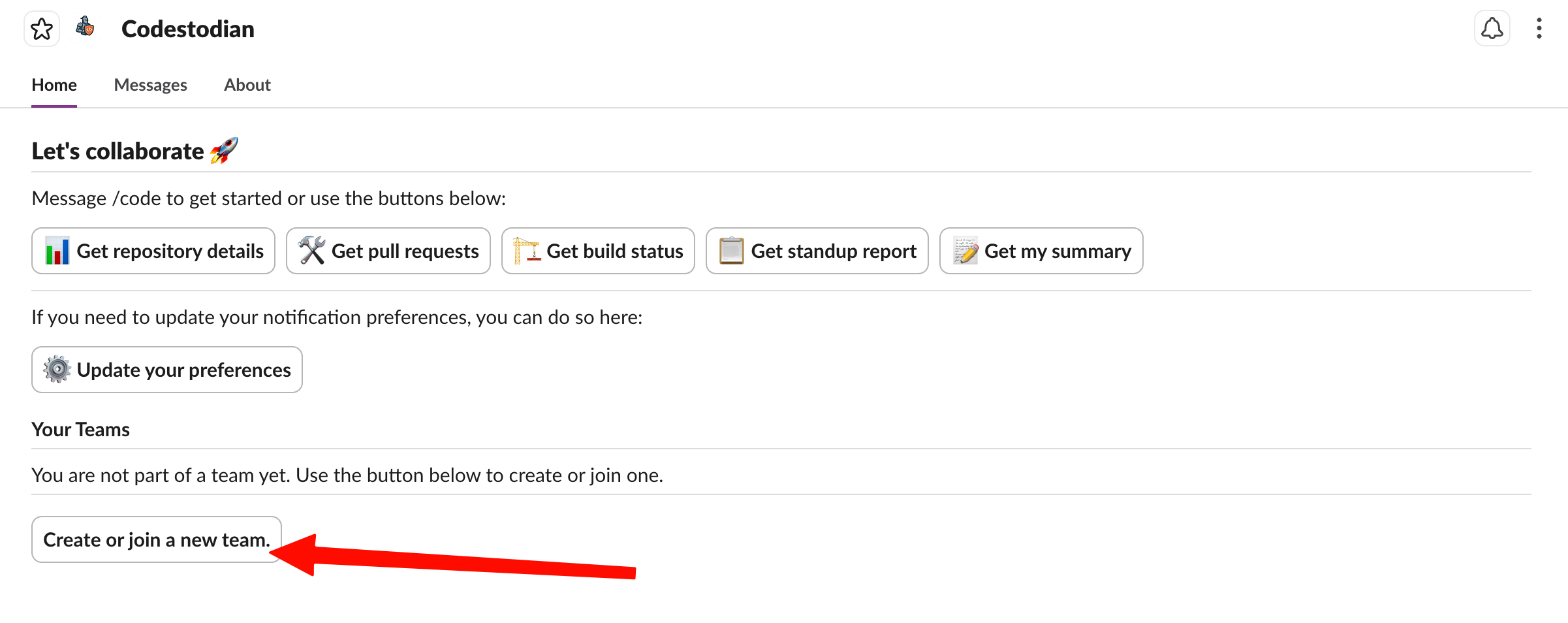
Once pressed, the following modal will be shown where you will be asked to enter the details of your new team you wish to create or join.
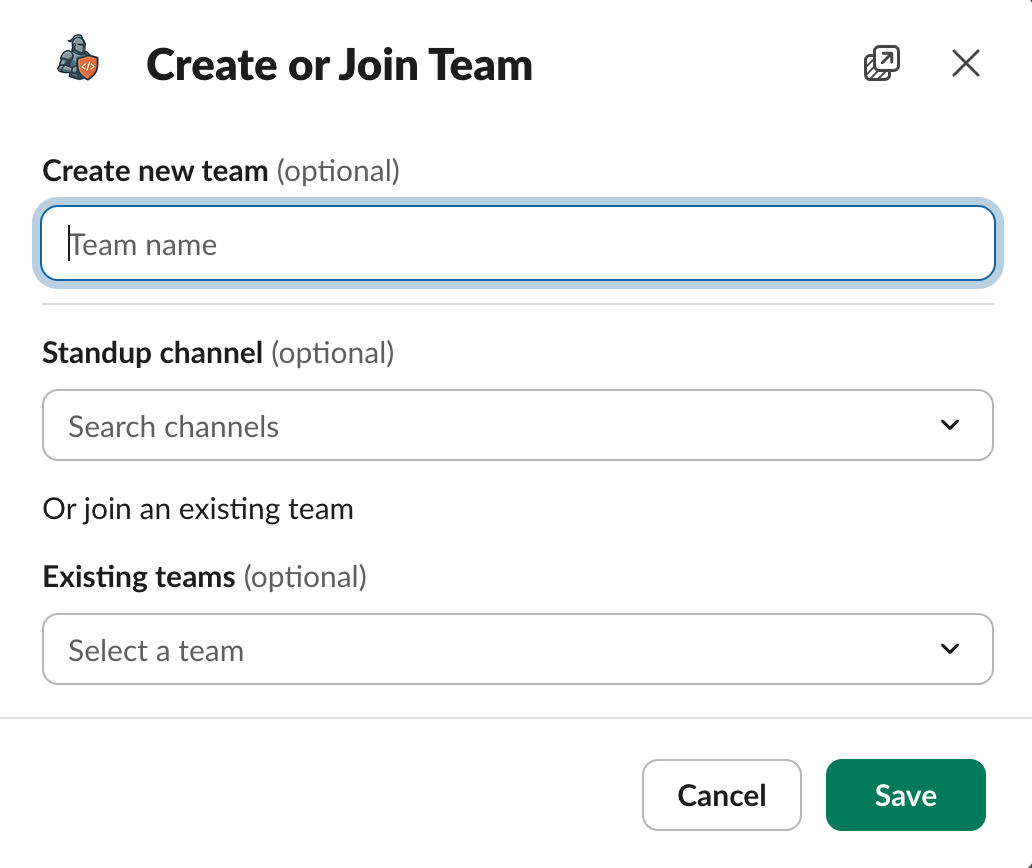
If creating a new team, enter the name for your team as well as the associated channel of the team. If you are joining a team, select or type the name of the team in the "Existing Channels" input.
Upon completing this, press the "Save" button and you will have joined your new team.
Managing a Team
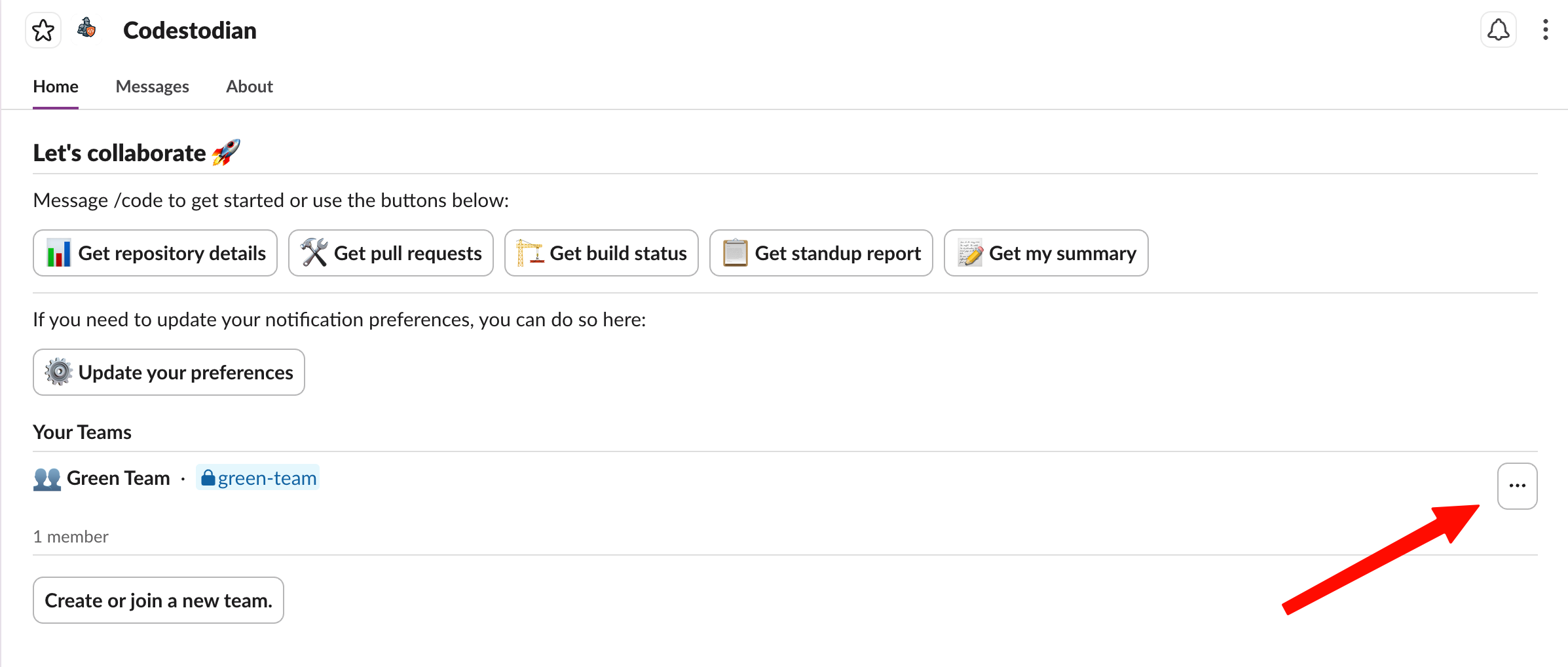
To edit the members of a team, the channel which the team is associated with, or the name of the team, on the home page of the Codestodian app press the "..." button next to the team which you wish to edit.
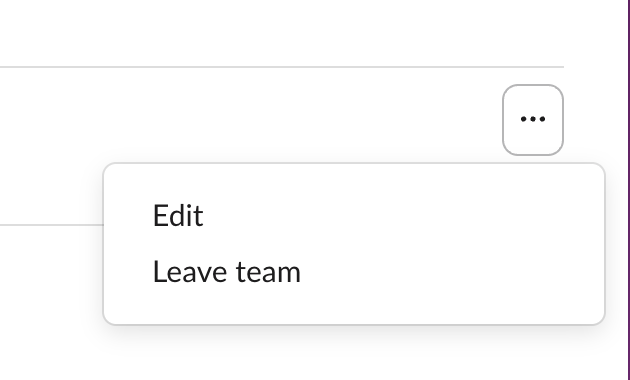
If you wish to leave the team, then you can press the "Leave team" option. Otherwise, press the "Edit" option and you will be presented with the following modal with the options to update the team name, add or remove members, and update the associated channel of the team.
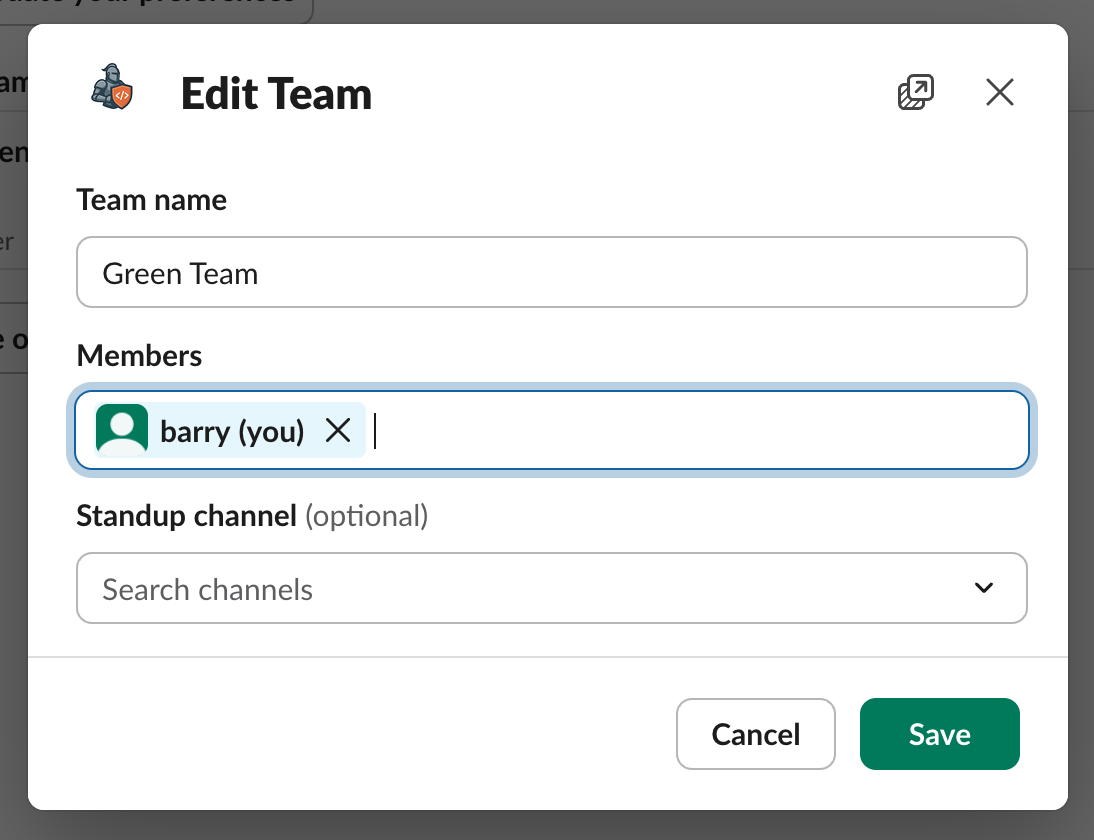
Once you have made the updates you wish to make, press the "Save" button and those updates will be reflected in the team.